Ticket Booth™ & branding
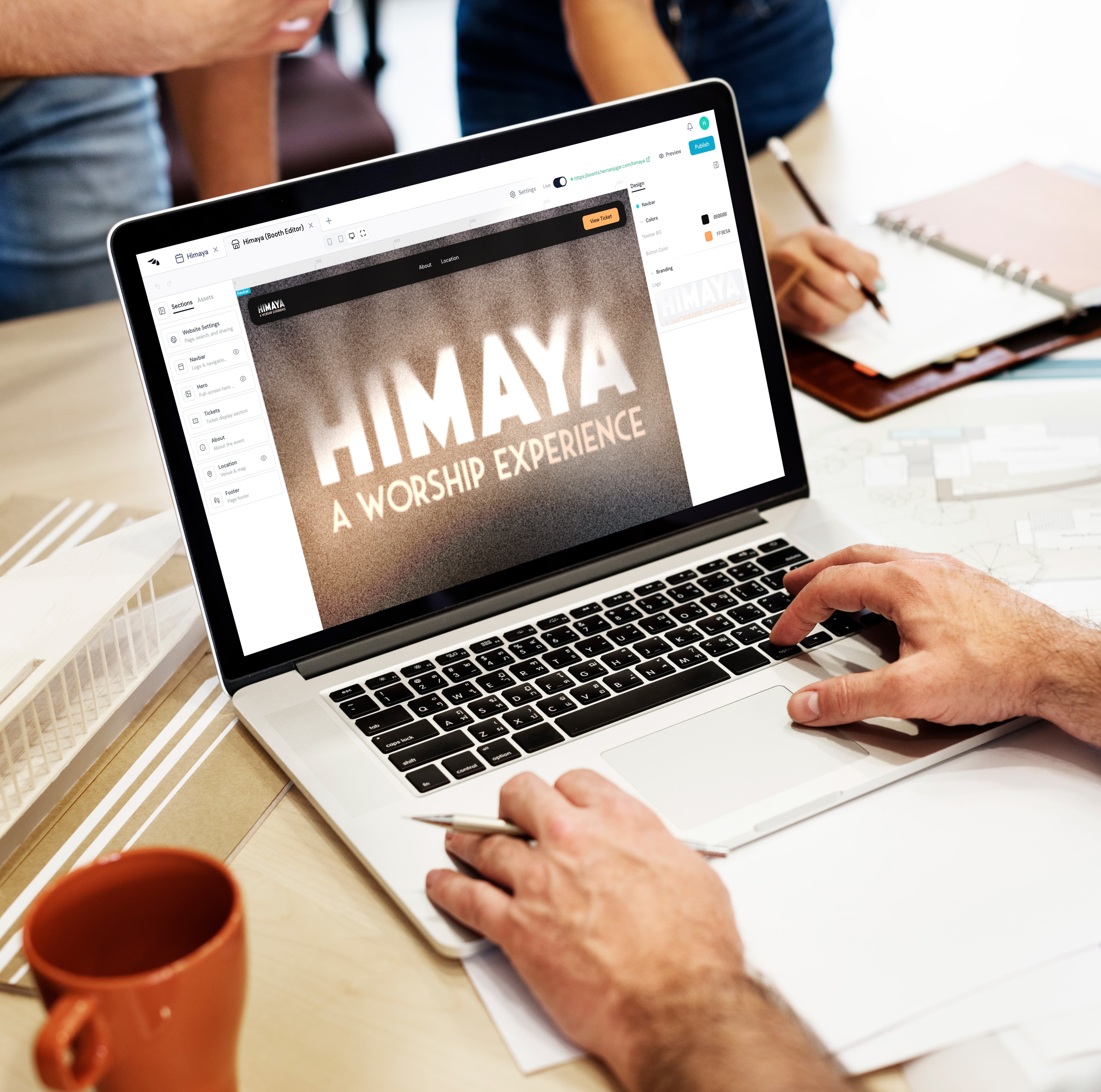
Booth Editor overview
The Ticket Booth is your public event page. Open Booth Editor from the event side panel. Work auto-saves as you go. Preview on mobile, tablet, and desktop.
- Sections: Navbar, Hero, Tickets, About, Location, Featured Guest, Seat Plan, Footer. You can hide Navbar, Hero, Location, Featured Guest, and Seat Plan. Tickets, About, and Footer stay on.
- Assets: upload images and set brand colors. Helper text: JPG, PNG, or WebP · max 5 MB each · saved as WebP. Organizer cap: 1 GB.
- Website Settings: page title, description, browser icon, and Social sharing image.
- Preview: see the page without publishing. Publish pushes the design. Live turns the public URL on or off.
Ticket section background
Select the Tickets section. Set the section background color or image so ticket cards sit on your brand, not a default fill. Only ticket types with Show in Ticket Booth on appear here.
Assets library
Open the Assets tab. Click Upload images. Files are shared across your events. JPG, PNG, or WebP · max 5 MB each · saved as WebP. Organizer cap: 1 GB (`Storage (images, videos & fonts)`). Videos and fonts are listed as coming soon.
Brand colors in Assets
In Assets, add Brand colors. Color pickers across Booth Editor and Ticket Design can reuse those swatches so Navbar, buttons, and ticket sidebars stay consistent.
Booth sections (how-to per section)
- Navbar: Logo, Navbar BG, Button Color. Can be hidden.
- Hero: Hero image, title as Image or Text, headline and subtitle. Can be hidden.
- Tickets: always on. Headline, subheadline, Section background (color or image), and Content background. Only ticket types with Show in Ticket Booth on appear here.
- About: always on. Title and description.
- Location: Venue and map. Can be hidden.
- Featured Guest: guest photos and names. Nav title presets include Bands, Guest, Speakers, Performers, Artists, Lineup. Can be hidden.
- Seat Plan: seating image from Assets. Can be hidden.
- Footer: always on. Section background, text, and social links (X, LinkedIn, Facebook, Instagram, Pinterest).
Publish / unpublish Ticket Booth
Publish in Booth Editor opens Publish Ticket Booth and pushes the current design. Visitors already on a live booth see the updated design immediately. This does not by itself turn the booth on.
The Live switch sets whether the public URL is on. Toasts: Ticket Booth enabled / Ticket Booth disabled. On the home Dashboard, the event card menu Publish / Unpublish does the same. Unpublish is blocked if the event has completed sales (Cannot unpublish an event with completed sales). When Live is off, visitors see Coming Soon.
Publishing the design and turning Live on are separate. More detail: Publish & Share.